
Last updated: November 8, 2026
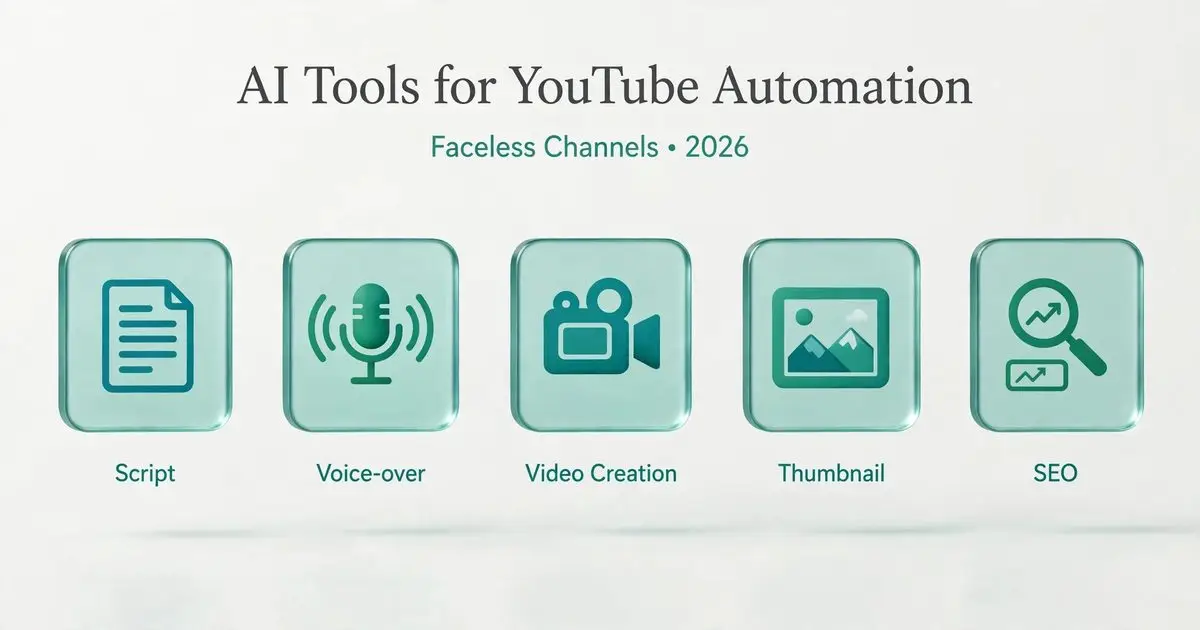
AI tools for YouTube automation can take over the slow, repetitive parts of running a channel: writing scripts, recording voice-overs, assembling video, designing thumbnails and cutting Shorts. They do not replace ideas, judgment or quality. This guide shows which tool fits which step, what the free plans offer, and the YouTube rules you need to know before you automate anything.
It is written for beginners who want to start a faceless channel, meaning a channel where the creator does not appear on camera. Prices and features change often, so treat the numbers here as a starting point and confirm them on each tool’s official site before paying.
Quick Picks: Top AI Tools for YouTube Automation
| Step | Tool | Free option? | Best for |
|---|---|---|---|
| Script | ChatGPT, Claude or Gemini | Yes, with limits | Outlines, hooks and first drafts |
| Voice-over | ElevenLabs | Yes, but no commercial license | Natural-sounding AI voices |
| Video | InVideo AI | Limited | Turning a prompt into a draft video |
| Thumbnails | Canva | Yes | Templates and quick edits |
| Shorts | OpusClip | Yes, with watermark | Cutting long videos into Shorts |
| SEO | vidIQ and TubeBuddy | Yes, limited | Keywords, titles and tags |
Read This First: YouTube’s Rules on Automated and AI Content
Automation only helps if your videos still offer something worth watching. YouTube’s monetization policy says content should be your original creation and should not be mass-produced, generic or repetitive. Its help page names examples that are not allowed, such as image slideshows with little narrative or educational value, and AI-generated content from generic templates that gives an impression of mass production.
The same page says some repetition is fine. Using the same intro and outro is allowed as long as the bulk of each video is different, and a series where each video has a distinct storyline, focus or concept is acceptable.
YouTube also asks creators to disclose realistic content that was made or altered with AI. Use the disclosure setting in YouTube Studio when your video shows realistic people, places or events that did not happen.
What this means in practice:
- Add your own research, opinion or structure to every video.
- Vary topics, visuals and scripts instead of reusing one template.
- Do not publish dozens of near-identical videos.
- Fact-check every claim in an AI-written script.
- Disclose realistic AI-generated content.
Policies get updated, so read YouTube’s current monetization policies page before you plan a channel.
How to Choose the Right AI Tools for YouTube Automation
- Budget: start with free plans and pay only when a limit slows you down.
- License: if you plan to earn from the channel, check that the plan allows commercial use.
- Learning curve: pick one tool per step instead of testing ten tools at once.
- Channel type: a talking-style explainer needs strong scripts and voice, while a Shorts channel needs fast clipping and captions.
1. Script Writing: ChatGPT, Claude and Gemini
General AI assistants are the easiest place to start for scripts. Ask for a video outline, three hook options and a first draft, then rewrite it in your own words. All three offer free access with usage limits that change over time, and paid plans for heavier use.
Best for: brainstorming topics, outlines, hooks and rewriting.
Watch out: assistants can state wrong facts with confidence, so check names, dates and numbers. Scripts that all sound alike can also run into the repetitive-content rule, so give the assistant your audience, tone and one personal angle for each video.
2. Voice-Overs: ElevenLabs
ElevenLabs is a popular AI voice generator. According to the price tracker we checked, the free plan gives 10,000 credits a month, which is roughly 10 minutes of audio, with no commercial license and possible branding on the output. The cheapest paid plan, Starter, is listed at $6 a month, and Creator at $22 a month.
Best for: natural-sounding narration for explainers and faceless channels.
Watch out: a free plan without a commercial license is not meant for a monetized channel. Before publishing, make sure you read the license terms.

3. Video Creation: InVideo AI
InVideo AI builds a draft video from a text prompt, with stock footage, captions and voice. Price trackers list a free plan with limits and branding, and paid plans starting at $20 a month (Starter), $60 (Plus) and $150 (Max).
Best for: fast first drafts that you then edit.
Watch out: draft videos built from the same template can look generic, which is the pattern YouTube’s policy warns about. Edit the draft, change the visuals and add your own commentary.
4. Thumbnails: Canva
Canva’s free plan includes thousands of templates, and a tracker lists 50 uses a month of its AI Magic Studio tools on the free plan. Canva Pro is listed at about $15 a month.
Best for: simple, clear thumbnails with readable text.
Tip: keep one consistent style for your channel, but use a different image and headline for every video.
5. YouTube Shorts: OpusClip
OpusClip cuts long videos into short clips. A tracker lists a free plan with 60 credits a month, watermarked clips and 1080p exports, with paid plans starting around $15 a month (Starter) and $29 a month (Pro).
Best for: turning one long video into several Shorts.
Watch out: the same tracker says free-plan clips expire after 3 days, so download them promptly.

6. YouTube SEO: vidIQ and TubeBuddy
Both tools help with keywords, titles, tags and video ideas. According to vidIQ’s own site, its free plan includes 150 monthly AI credits, while the Boost plan costs $19 a month and the Max plan costs $49 a month. TubeBuddy’s own pricing page lists Pro at $3 a month and Legend at $15 a month (annual Pro $32 a year, Legend $144 a year). The pricing page shows no free plan. Check TubeBuddy’s own pricing page for the latest prices.
Best for: finding keywords and checking how competitive a topic is.
Best Free AI Tools for YouTube Automation
You can start with a free stack and pay only when a tool holds you back:
- Script: the free tier of ChatGPT, Claude or Gemini.
- Thumbnails: the Canva free plan.
- SEO: the vidIQ free plan or the TubeBuddy free plan.
- Shorts: the OpusClip free plan, which adds a watermark.
- Voice: the ElevenLabs free plan, for testing only.
- Video: the InVideo AI free plan, for testing only.
A free stack is fine for learning and testing. Before you earn from a channel, check the commercial-use and watermark rules of every tool you use.
Best AI Tools for Automated YouTube Shorts Creation in 2026
For Shorts, a simple workflow works well: write a short script with an AI assistant, generate the voice, build the visuals, then add captions. OpusClip fits if you already have long videos, while InVideo AI and Canva suit Shorts made from scratch. Varied Shorts that give viewers something useful are safer than many near-identical ones, because YouTube’s policy targets generic and repetitive content.
How to Start a Faceless YouTube Channel with AI Tools
- Pick one narrow topic that you can keep making videos about.
- Research it with vidIQ or TubeBuddy to find keywords and video ideas.
- Draft the outline, hook and script with an AI assistant, or compare AI models in AI Fiesta to pick the strongest draft, then edit and fact-check it.
- Create the voice and video with your chosen tools.
- Design a clear thumbnail in Canva and write a title that includes your main keyword.
- Upload, set the AI disclosure if it applies, and review the results after a few weeks. Then improve and repeat.
For a complete step-by-step walkthrough, see our guide to starting a faceless YouTube channel with AI and our guide on how to automate a YouTube channel with AI.
Common Mistakes to Avoid
- Publishing raw AI output without editing it.
- Using the same template, voice and footage for every video.
- Ignoring the license terms on free plans.
- Trusting AI-written facts without checking them.
- Paying for many tools before testing any of them.
- Posting many low-effort videos instead of a few good ones.
Frequently Asked Questions
Is YouTube automation allowed?
Using AI tools to help make videos is allowed. What YouTube restricts is monetizing content that is mass-produced, generic or repetitive. Read the monetization policies page and add original value to each video.
Can a faceless channel make money?
Yes, if it meets the YouTube Partner Program requirements and follows the policies. Check the current requirements in YouTube Studio, because they can change.
Is it possible to run a channel using only free AI tools?
Free plans let you begin, though many of them come with restrictions like watermarks or no commercial license. Check each tool’s terms before you monetize.
Must I disclose AI use on YouTube?
YouTube asks creators to disclose realistic content that was produced or modified with AI, through the option in YouTube Studio. Check YouTube’s current help pages for the exact rules.
Which AI tool should I pay for first?
Start with the free plans. If you pay for one tool first, choose the one that removes your biggest bottleneck, which is often voice or video.
Conclusion
AI tools for YouTube automation are most effective as assistants, not substitutes. Use an AI assistant for scripts, a voice tool for narration, a video tool for drafts, Canva for thumbnails, OpusClip for Shorts and vidIQ or TubeBuddy for SEO, and add your own ideas and checks at every step. Start small, test the free plans, and read each tool’s license and YouTube’s current policies before you earn money from a channel.
Sources
- YouTube Help, Channel monetization policies: support.google.com/youtube/answer/1311392
- Price trackers, checked November 2026: costbench.com pages for ElevenLabs, InVideo AI, OpusClip and Canva.
- vidIQ comparison page: vidiq.com/pt/compare/vidiq-vs-tubebuddy/
- TubeBuddy: tubebuddy.com
Prices and features were checked on November 2, 2026 and may change. Confirm them on each tool’s official site.