

Last updated: November 7, 2026. Everything below is based on one source, explained in the next paragraph.
If you are wondering how to use AI Fiesta, the app is built around one simple idea: you describe what you want in plain words, and the tool produces it. This guide walks through AI Fiesta 2.0 step by step, from your first chat to a published website, following the demo that co-founder Dhruv Rathee showed in his video of November 4, 2026.
We wrote this from that video, its transcript and screenshots taken from it. We have not tested the app ourselves, so every price, limit and offer is “as the founder stated it on that date”. Before paying, verify them on the official website. For pros, cons and a wider look, see our AI Fiesta review for YouTube creators.
The short version: open a chat, pick several models and turn on Compare, merge the answers with Consensus, then move on to the Image, Video, Slides and Websites tools. The demo used one made-up business, a sari shop in Delhi, to show every tool in a single flow.
What Is AI Fiesta 2.0?
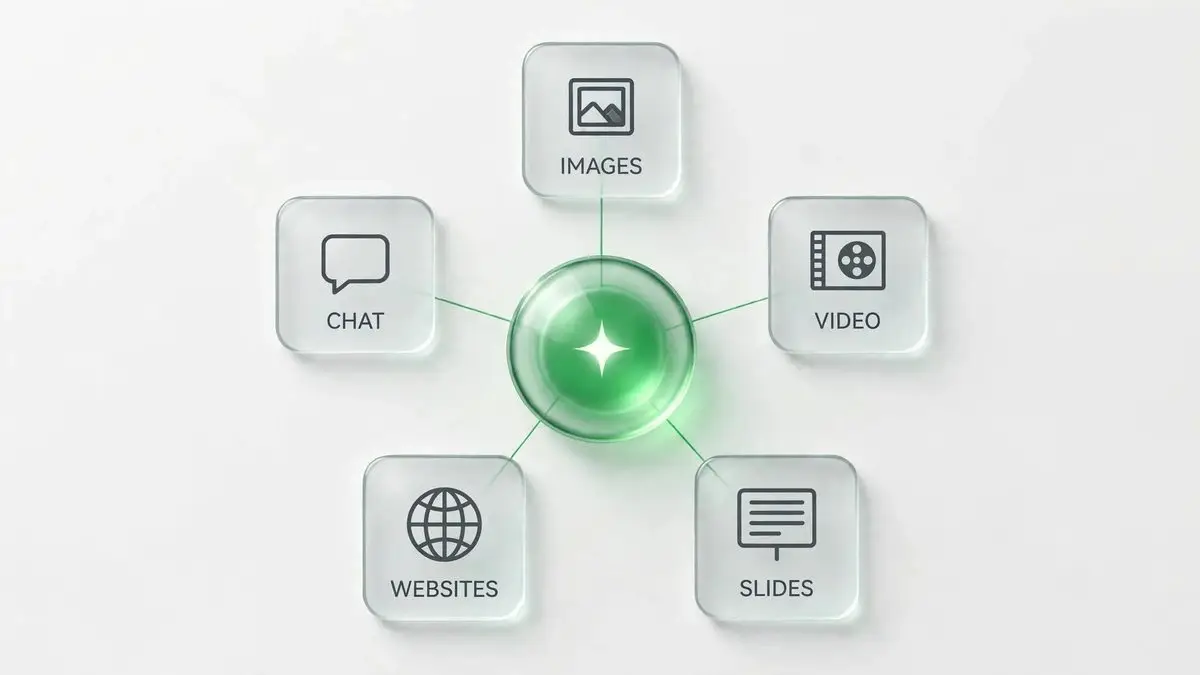
AI Fiesta gathers many AI models inside a single app. According to Dhruv Rathee, it launched about a year before the video with only 6 models and now offers more than 100, along with image generation, video generation, presentations and website building. He also says it has more than 1 lakh paying users and has handled more than 9 crore messages. These are the founder’s own numbers, so treat them as claims.
Part 1: Chat with Several Models at Once
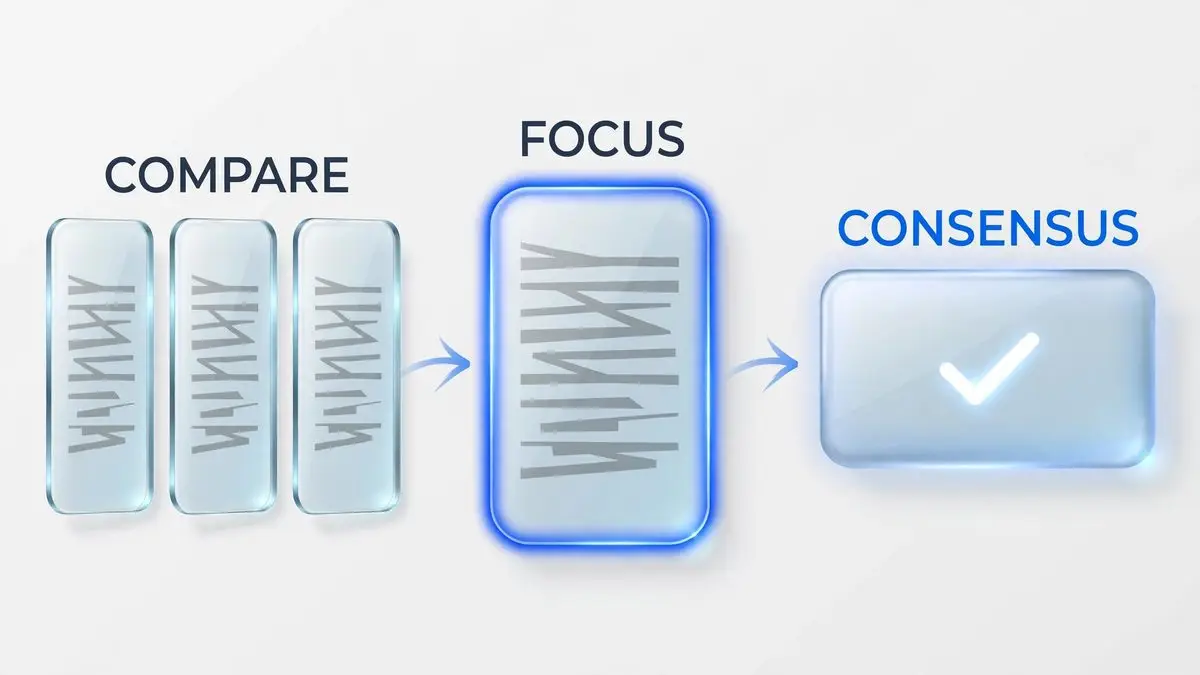
The chat is where most people start, and it is where AI Fiesta differs from a normal chatbot. Instead of one answer, you can ask several models the same question and read their replies next to each other.
- Open a new chat. Tap New Chat on the left-hand menu to start. You see a greeting and a prompt box at the bottom. The model menu on the right of the box says Auto by default, which means the app chooses a model for you.
- Pick your models. Open that menu to see a list with tabs such as Popular, Intelligent and Latest, plus a search box. In the demo, three models were ticked first (GPT-5.6 Luna, Qwen 3 Max and Claude Sonnet 5), then Apply for this chat was pressed. The chat later showed four models, with Grok 4.7 as the fourth.
- Turn on Compare. Press the Compare button under the prompt box. Now every prompt in this chat goes to all chosen models.
- Type or speak your question. You can use the microphone instead of the keyboard. The app writes your words into the bar while you talk, and the red tick sends it. The demo question asked for five brand names and taglines for a sari shop in Chandni Chowk, aimed at middle-class to upper-middle-class customers.
- Read the answers side by side. Each model gets its own column. If that feels crowded, press Focus to see one answer at a time and use the model list on the right to switch between them. In the demo, one name was picked this way: Rangrez Chandni, with the tagline “Rang Bhi, Shaan Bhi”.
- Press Generate Consensus. A bar at the bottom offers one combined answer from all models. The demo asked which logo colour suits the brand from a colour-psychology view. After Consensus, the advice was a deep indigo or royal blue main colour, gold as the accent and ivory or cream as the background.
Tip: you do not need every model on every question. Each extra model costs tokens, and the app warns that premium models use tokens at four times the standard rate (more on this in the pricing section).
Part 2: Make and Edit Images in Image Studio
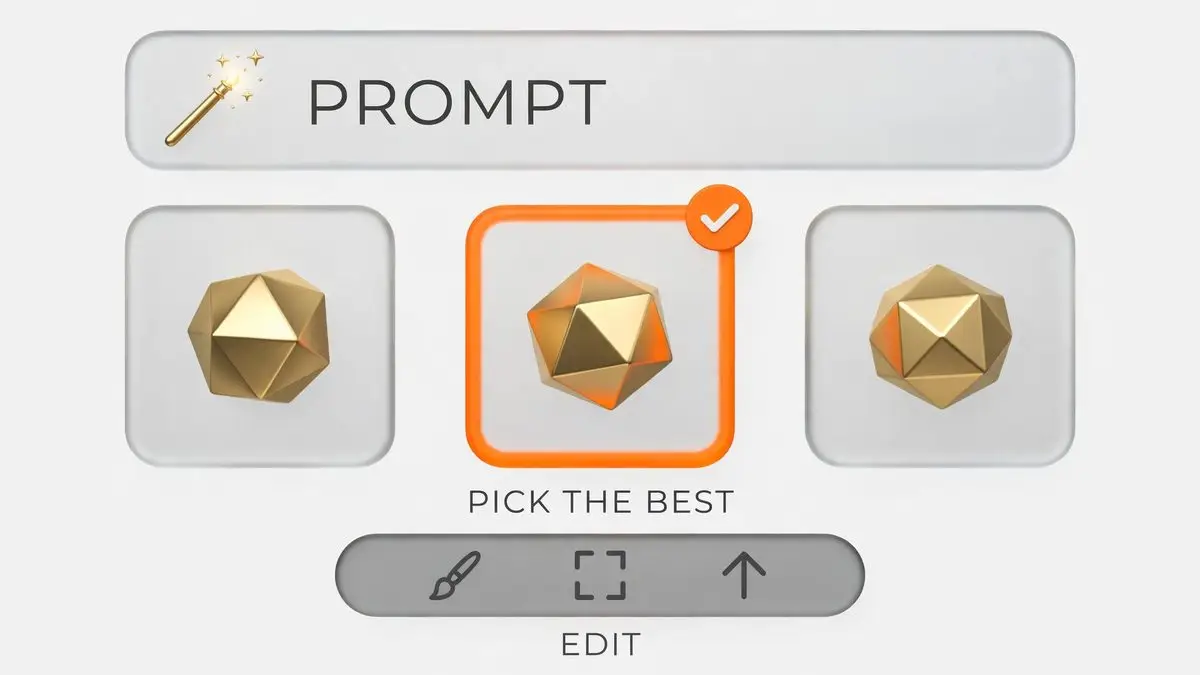
The demo moves next to Image Studio, the picture-making tool. It starts from a prompt box, like the chat, but returns pictures. It also has Editor and Templates options on its home screen.
- Open Image Studio. Click it in the left sidebar.
- Write the prompt. The demo pasted the combined logo idea from the Consensus answer: a minimal logo in traditional Indian style for the shop Rangrez Chandni, using the chosen colours.
- Improve it if you want. The wand icon is Enhance Prompt. It rewrites a short prompt into a fuller one, and you can read the result before sending.
- Choose image models and send.
- In the demo, Seedream 5.0 Pro, GPT Image 2 and Nano Banana 2 were used side by side. About ten seconds later, three different logos appeared side by side.
- Check the results. In the demo, one model made a spelling mistake in the Hindi text, and another logo had an extra small object that did not belong.
- Edit instead of starting over. Open Edit on an image to see a toolbar with Background, Object, Ratio, Upscale and Edit with prompt. The demo chose Object, brushed over the extra item, made the brush smaller and sent it again. A new version came back in a few seconds.
- Download your favourite. The founder preferred the Nano Banana version and downloaded it.
Product photos next. Back in Image Studio, the demo attached two things to the prompt: a real photo of a sari and the new logo. The prompt asked for a real Indian woman wearing this sari in front of a pleasant background, with the logo in the bottom-left corner. Three photos came back. Click any photo to open it full size and check the details, then download the best one. If you try this, use your own product photos. The demo used a photo taken from the internet only because the founder has no sari shop.
Part 3: Turn Images into a Short Video Ad
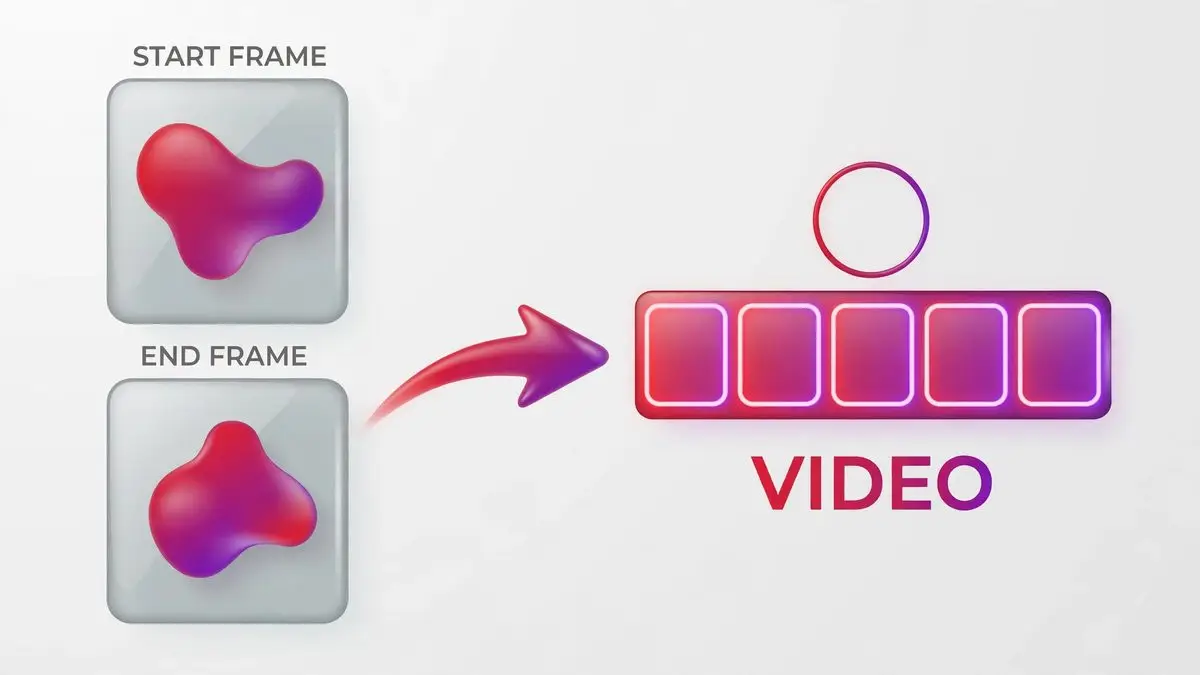
Video Studio works the same way: describe what you want in plain words. The difference is that you can also give the tool pictures to build the video from.
- Open Video Studio from the left sidebar. The home screen has a prompt box, plus settings for length, quality and sound. One screenshot showed 5 seconds at 480P with the model set to Auto.
- Add your pictures. You can set a Start frame, an End frame and extra image references. The video step reused the two pictures created earlier in the demo.
- Write the prompt. The demo asked for an ad for the sari brand using those two images, with a length of 8 seconds. The model shown while it worked was Seedance 2.5.
- Wait. Video models take longer than chat or image models, so the demo moved on to slides while the ad was being built.
- Watch and fix. The founder said the ad looked good, but the AI voice sounded artificial and made spelling and pronunciation mistakes. His fix: write the exact tagline in your prompt so the tool says it as you want.
Check the token note. Screens in the video showed estimates before you press Generate: about 150K tokens for a short 480P video and about 205K tokens for the 8-second Seedance 2.5 version. Read these numbers each time, because video is the most expensive tool in the demo.
Part 4: Create a Slide Deck
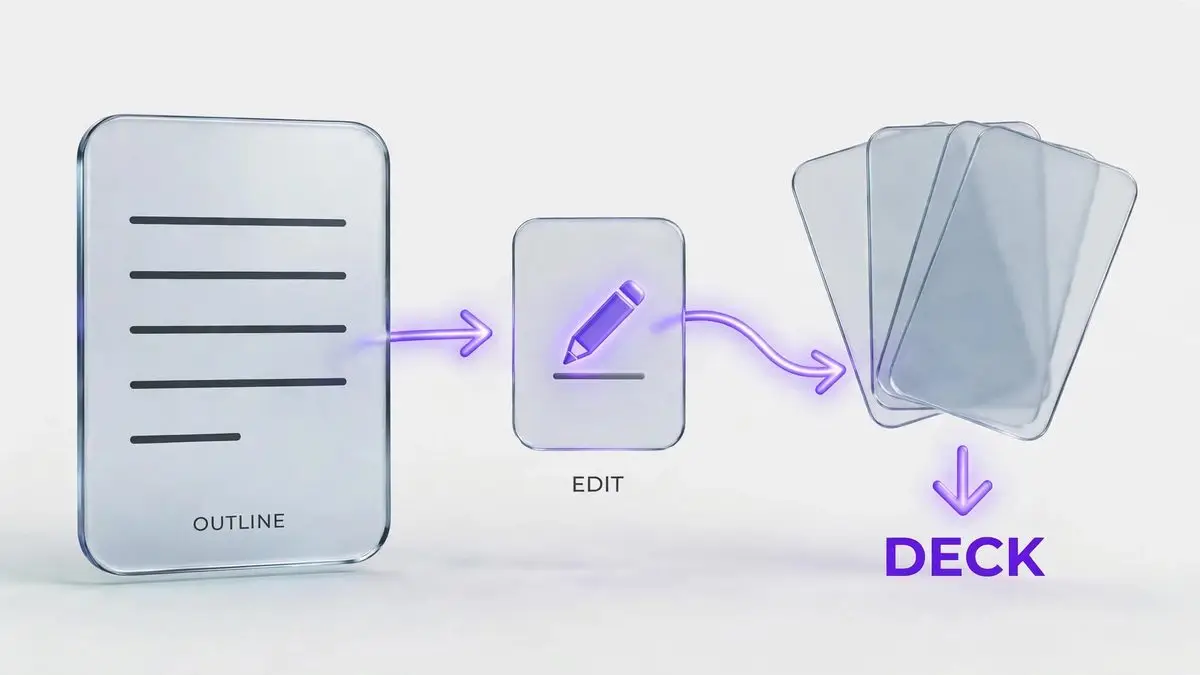
The Slides tool drafts an outline first and builds the deck only after you approve it. That middle step is where you catch mistakes.
- Open Slides and describe the presentation in a sentence or two. The demo asked for an investment deck for the sari shop, to request funding of 10 lakh rupees and show current business details. Small settings under the box cover things like slide count and style; the video does not explain them.
- Review the outline. AI Fiesta wrote a five-slide outline, starting with the shop and moving to the market and the current business. You can edit any line, add a slide or delete one.
- Fix invented details. The AI had written a made-up foundation date, and the founder changed it by hand. Any number or fact the AI guessed should be corrected at this stage.
- Press Generate Deck. When the deck is ready, it appears as a Generated Document with a download link for a .pptx file.
- Open it in PowerPoint. After that, the founder opened the deck in PowerPoint to look it over. It had a title slide with the sari photo and thumbnails of the other slides. PowerPoint showed a missing-fonts notice, so check the fonts on your own computer.
A deck uses fewer tokens than a video. One screenshot showed about 85K tokens for a deck.
Part 5: Build and Publish a Website
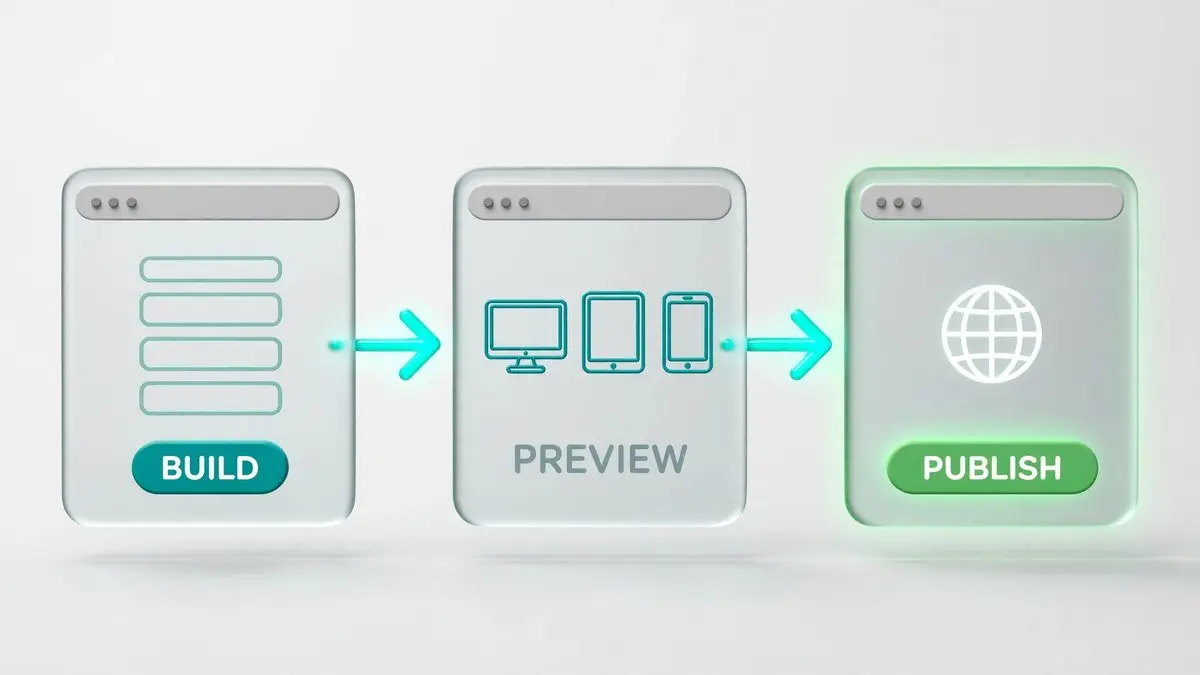
Websites is the last big tool in the demo. You describe the site, the builder asks a few questions, and you publish it to a shareable address.
- Open Websites and attach your files. The demo attached the logo and one of the AI-made sari photos, typed a one-line request to create a website for the sari brand, and pressed Build.
- Answer the builder’s questions. It asked, for example, whether Rangrez Chandni was the exact brand name, what visitors should be able to do, how customers should contact the shop and which saree collections to feature. The answers in the demo were: yes, a full shop feel with prices and enquire buttons, and Instagram and WhatsApp with an enquiry form for now. You can answer or skip each question.
- Wait for the first build. According to the on-screen note, that first build needs a few minutes. Once a page is ready to display, the preview opens right away.
- .Preview before publishing. The Preview tab lets you switch between desktop, tablet and mobile views. That same view also offers tabs showing the code and earlier versions. The founder said an analytics tab for visitor numbers would launch in the coming months.
- Check the address. In Settings, then Domains, you can edit the site address. It must be 3 to 40 characters, using letters, numbers and hyphens only.
- A domain you already own can also be linked. The demo site used the name rangrez-chandni.
- Press Publish. The site goes live. The demo result had a clear headline, the logo at the top, the sari photo with the logo in its corner and an Enquire about a saree button.
If you change the address later, visitors on the old address stop reaching the site, so pick a good name before you share it. Building a site also uses tokens: one screenshot showed about 150K.
AI Fiesta Price and Usage (as Stated by the Founder)
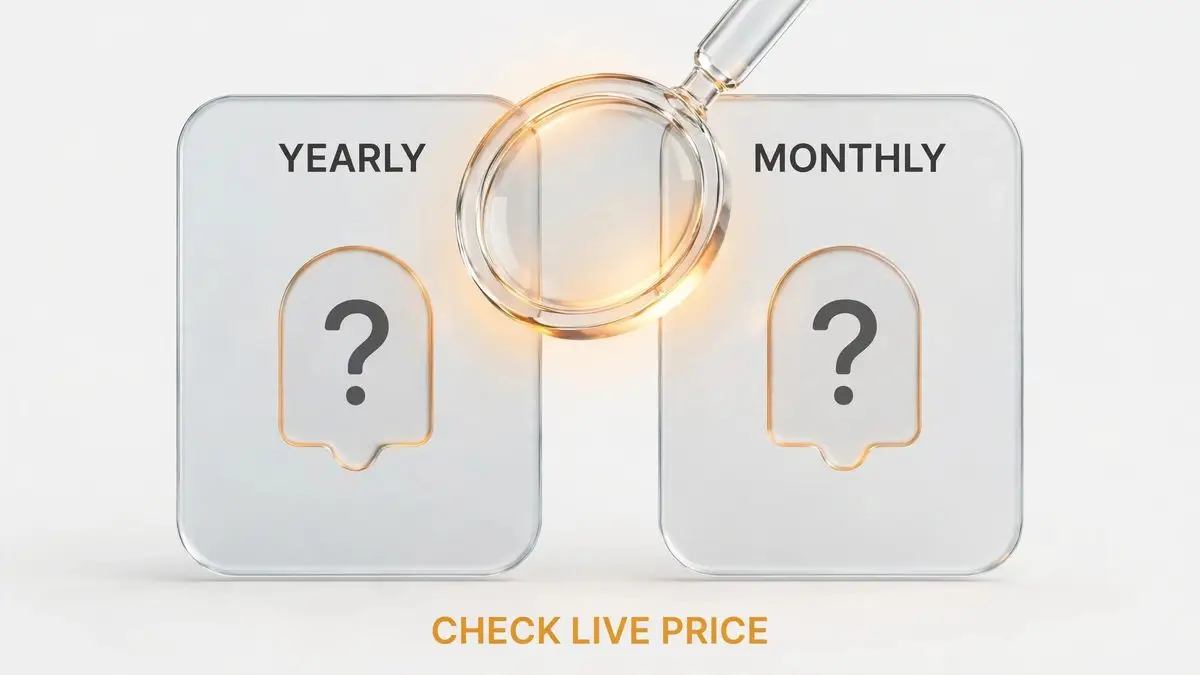
This section follows what Dhruv Rathee said in the video on November 4, 2026. We did not check the live pricing page, so confirm every figure there.
The extra-usage offer was tied to the links in his video description and pinned comment, so it may no longer be available and does not apply to this site. The free domain is the same story: the founder said domains normally cost Rs 800 to Rs 1,500 a year in India.
How tokens work in the app
A usage counter sits in the prompt area, and tools show a token estimate before you generate.
Some models carry a 4x or 8x badge in the model picker, and the app warns that premium models use tokens at four times the standard rate.
Screens in the video showed about 150K tokens for a short video, about 205K for the 8-second ad, about 85K for a deck and about 150K for a website build.
The video does not give the total monthly token allowance for each plan, and it does not say whether there is a free plan or a refund. Check the official AI Fiesta website for these points, and for what the PRO tag on Video Studio means, before you pay.
How to Adapt These Steps for a YouTube Channel (Our Suggestion)
The demo was about a sari shop, not YouTube. These ideas are our own, not from the video, and they use the same tools.
- Use Compare to ask several models for video title or hook ideas, then use Consensus to see where they agree.
- Use Image Studio to try visual ideas, then Edit to fix small details instead of regenerating everything.
- Use Video Studio for short clips, and write any spoken line exactly, as the founder suggested.
- Edit everything the AI gives you and add your own ideas before you publish.
For the wider picture of tools for this niche, see our guide to the best AI tools for YouTube automation. For the complete setup, including voice, editing and analytics, see how to automate a YouTube channel with AI.
Common Mistakes
- Turning on many premium models for a simple question and using tokens faster than you need.
- Trusting details the AI invented, such as dates in a deck or Hindi spelling in a logo.
- Skipping the exact tagline in a video prompt and getting a mispronounced voice.
- Publishing a website without checking the mobile and tablet views.
- Assuming a launch offer is still running a few days after the video.
FAQ
How do I start using AI Fiesta?
Open a New Chat, pick the models you want from the model menu and turn on Compare. Then try Image Studio, Video Studio, Slides or Websites from the sidebar.
What is Generate Consensus?
It merges the answers from the models you chose into one combined answer, so you do not have to read every column.
Can AI Fiesta make presentations?
Yes. Slides drafts an outline you can edit, then builds a deck you can download as a PowerPoint (.pptx) file.
Can I publish a website with AI Fiesta?
Yes. Websites builds a site from your description, lets you preview it and publishes it to an address you choose. You can also connect a domain you own.
How much does AI Fiesta cost?
The founder stated Rs 7,999 a year or Rs 999 a month in his video of November 4, 2026. Look at the live pricing page to see the figure that applies now.
Is there a free plan?
The video does not say. Check the official website.
Conclusion
The demo shows that AI Fiesta is meant to be used as a flow: compare models for an idea, make the visuals, then turn them into a video, a deck and a website. Start with a small test, watch the token estimates before each generation and correct anything the AI guessed. Before you pay, read the live pricing page, because the figures here are only as good as the date of the video.
Sources
- Dhruv Rathee, AI Fiesta 2.0 video (21:12, published November 4, 2026), including the demo from about 7:39 to 17:07 and the pricing section
- AI Fiesta official website, for current plans and prices
- Annotated screenshots and notes made from the same video
Prices and offers are as the founder stated them on November 4, 2026 and may have changed. Always confirm on the official site.