

Last updated: 12 November 2026
Choosing an AI video editor for YouTube is harder than it looks, because tools sold under that label do very different jobs. Some cut talking-head footage by editing a transcript, some pull Shorts out of a long video, and some build a video from a text prompt. Pick the wrong type and you pay for a month of features you never use.
This guide compares seven tools by the job each one does best, what the free plan really gives you, and what paid plans cost. Prices were checked on 12 November 2026, and plans change often, so confirm on the vendor’s page before paying. YouTube’s monetization rules also apply to AI-edited videos, so they get their own section below. If you run a faceless channel, read this together with our guide to the best AI tools for YouTube automation.
What an AI Video Editor Actually Does
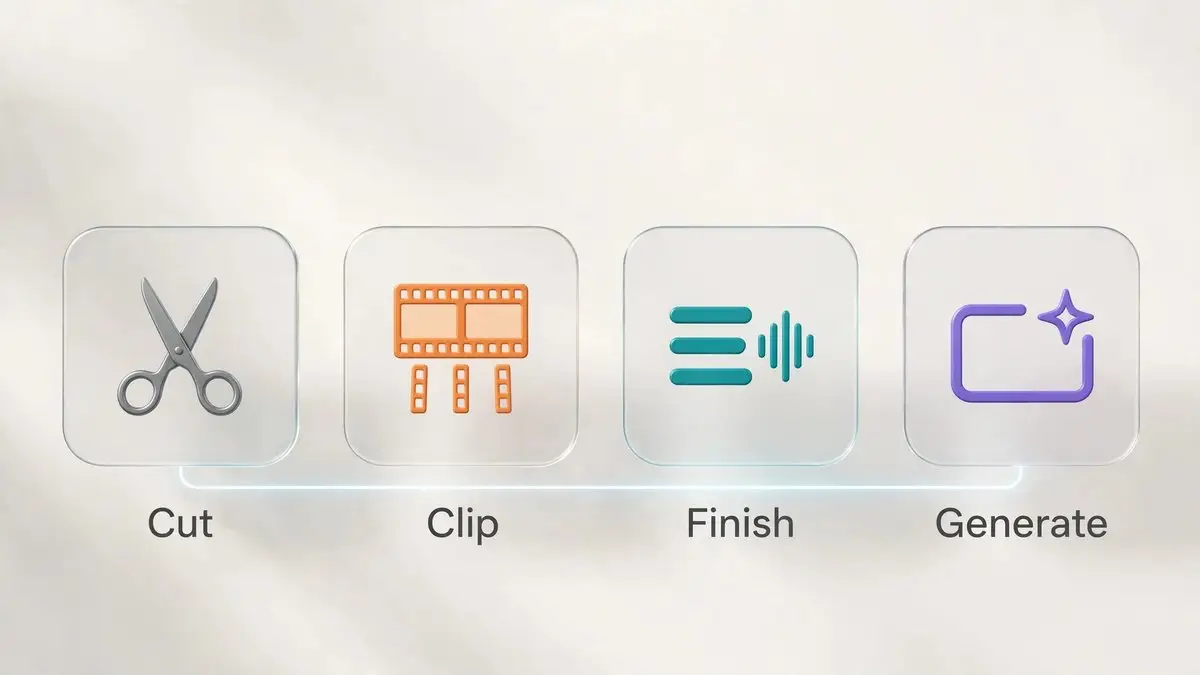
An AI video editor makes editing decisions for you instead of waiting for you to make each one. For a YouTube creator that usually means one of four jobs:
- Cutting: removing filler words, silences and bad takes from raw footage.
- Clipping: finding the strongest moments in a long video and turning them into vertical Shorts.
- Finishing: adding captions, B-roll, cleaner audio and eye-contact fixes.
- Generating: building scenes or whole videos from a text prompt.
No single tool is best at all four, which is why the picks below are grouped by job instead of ranked from one to seven.
Quick Picks: Best AI Video Editor for YouTube by Job
| Tool | Best for | Free plan | Paid plans from |
|---|---|---|---|
| Descript | Talking-head and tutorial videos edited by text | Yes, limited (watermark, 720p) | $16/month billed annually |
| OpusClip | Turning long videos into Shorts | Yes, 60 credits (watermark) | $15/month |
| CapCut | Quick phone edits and captions | Yes, basic tools | About $19.99/month (Pro) |
| VEED | Browser editing and subtitles | Yes (watermark, 720p) | $12.25/month billed annually |
| DaVinci Resolve | Free, full manual control | Yes, full editor | Studio: one-time, $236 |
| Premiere Pro | Professional timelines | Trial only | From $22.99/month (annual plan; prices vary by region — see Premiere Pro section) |
| Invideo AI | Prompt-to-video drafts | Not shown on pricing page | $20/month (monthly billing) |
Prices are in US dollars, as listed on each vendor’s page on 12 November 2026, except Premiere Pro (Adobe’s India page shows rupees — see the Premiere Pro section) and CapCut Pro (CapCut’s own help pages and price trackers). Prices shown to you in India may be in rupees at checkout and can differ.
1. Descript: Best for Talking-Head and Tutorial Videos
Descript turns your recording into text so you can edit video like a document: remove a sentence from the text and the matching footage disappears. Its pricing page lists Underlord (its AI co-editor), Studio Sound for cleaner audio, Remove Filler Words, Remove Retakes, Create Clips and Eye Contact. That makes it a natural fit for tutorials, interviews, podcasts and any channel where a person talks to the camera.
Best for: spoken-word YouTube videos where text-based editing feels natural.
Watch out: media hours and AI credits are both capped, so long recordings and heavy AI use can hit the limit. Free exports are watermarked and limited to 720p.
Pricing (official page): Free is $0 with 60 media minutes a month. Hobbyist is $16 a month billed annually ($24 billed monthly) with 10 media hours, 400 AI credits and 1080p export without a watermark. Creator is $24 a month billed annually ($35 monthly) with 30 media hours, 800 AI credits and 4K export. See the Descript pricing page.

2. OpusClip: Best for Turning Long Videos Into Shorts
OpusClip takes a long recording, finds moments that may work as Shorts, reframes them to vertical and adds animated captions. Each clip gets a score that estimates how well it might perform, but that score is the tool’s own guess, not a promise of views. Paid plans can also post clips straight to YouTube Shorts. It suits creators who already publish long videos and want Shorts without re-editing everything.
Best for: repurposing podcasts, interviews, streams and long tutorials.
Watch out: it is a clip-and-publish tool, not a full timeline editor, and the free plan adds a watermark. Clip only your own videos: re-posting other people’s footage without adding something new can break YouTube’s reused-content rules.
Pricing: the details below come from OpusClip’s own blog, so treat them as vendor claims; price trackers list the same $15 and $29 amounts. Free is $0 with 60 credits a month and a watermark. Starter is $15 a month with 150 credits. Pro is $29 a month ($14.50 a month billed annually) with 300 credits. Check the OpusClip pricing page before buying.

3. CapCut: Top Pick for Fast Edits and Captions on Mobile
CapCut runs on phone, desktop and in the browser, which makes it the usual starting point for Shorts and quick vertical edits. Its website lists auto captions, text-to-speech, noise reduction and a wide set of AI tools. It is easy to learn, so it works well for beginners who do not want a heavy editor.
Best for: fast, phone-first editing and captioned Shorts on a small budget.
Watch out: plans have changed during 2026. CapCut’s own help page says the old, cheaper price is no longer offered to new subscribers, and displayed prices vary by region.
Pricing: a free plan comes with basic editing tools. After its March 2026 change, CapCut says Pro includes 1,200 AI points and 1 TB of cloud storage. CapCut’s own resource page and price trackers list Pro at $19.99 a month, but check the price at checkout for your country.
4. VEED: Best for Browser Editing and Subtitles
VEED works entirely in the browser, so there is nothing to install. Its pricing page lists subtitles, Remove Filler Words, Remove Silences, Clean Audio, AI B-roll, Eye Contact, auto-edits and clip tools, plus AI voice and AI video generation paid for with credits.
Best for: creators who edit on different computers, or who want subtitles and cleanup in one browser tab.
Watch out: billing is per seat, and AI credits reset every billing period instead of rolling over.
Pricing (official page): Free is $0 with a watermark, 720p export and 10-minute exports. Creator is $25 a month, or $12.25 a month billed annually ($147 a year), with no watermark and 1080p export. Pro is $45 a month ($22.08 a month billed annually) with 4K export. See the VEED pricing page.
5. DaVinci Resolve: Best Free Option for Full Control
DaVinci Resolve is a professional editor with colour correction, effects and audio tools in one app, and its free version has no subscription. According to Blackmagic’s product page as summarized by a third-party review, the free version can edit and finish video up to Ultra HD. The paid Studio version adds the DaVinci AI Neural Engine, which includes tools such as magic mask, smart reframe, voice isolation and object removal.
Best for: creators who want pro-grade editing without a monthly bill and are willing to learn.
Watch out: Resolve is a full post-production suite, so it takes longer to learn than a clip-first tool and does not pick Shorts moments out of a long recording for you. A reasonably powerful computer helps.
Pricing: the free version costs $0. Studio is a one-time purchase, currently listed at $236 on Blackmagic’s official page (was $295), so confirm the current price on Blackmagic’s website before buying.

6. Premiere Pro: Best for Professional Timelines
Premiere Pro is Adobe’s professional editor. Adobe’s product page, as summarized by third-party reviewers, lists text-based editing, search across your media and Generative Extend powered by Firefly. It suits editors who already use other Adobe apps, or teams working on long, complex projects.
Best for: long-form videos with complex timelines and Adobe-based workflows.
Watch out: it is subscription-only, with no free plan beyond a trial, and the lowest rate needs a yearly commitment.
Pricing: Adobe’s India page lists Premiere Pro at ₹389 a month including GST in the first year, then ₹733.96 a month, on an annual plan billed monthly. In the US, $22.99 a month on an annual plan billed monthly is corroborated by other Adobe sources, and around $34.49 for a month-to-month plan. Adobe may now show the product simply as Adobe Premiere, and prices vary by region, so check Adobe’s page for your country before buying.

7. Invideo AI: Best for Prompt-to-Video Drafts (Use With Care)
Invideo AI builds videos from a text prompt using stock footage and generative models. Its pricing page also lists a full timeline editor with colour and audio tools on every plan, so you can edit your own footage as well. It is the tool in this list most often linked with faceless channels.
Best for: quickly drafting explainer-style videos or ads from a script or prompt.
Watch out: this is the category where YouTube’s rules on mass-produced and templated content matter most (see the policy section below). Credits are spent quickly on video generation, and unused credits do not roll over.
Pricing (official page): Starter is $20 per seat a month billed monthly, or $10 per seat a month billed annually during its 50% off offer, with 400 credits a month. Plus is $60 monthly ($30 annual offer) with 2,000 credits. Max is $150 monthly ($75 annual offer) with 5,000 credits. The page we read shows no free plan. See the Invideo pricing page.
How to Choose the Right AI Video Editor
- You talk to the camera: start with Descript or VEED.
- You already have long videos and want Shorts: try OpusClip.
- You edit on a phone: CapCut is the easy start.
- You want pro control for free: DaVinci Resolve’s free version.
- You work in the Adobe world: Premiere Pro.
- You need a quick prompt-based draft: Invideo AI, then add your own voice and ideas.
If you want the bigger picture beyond editing, our guide to automating a YouTube channel with AI covers scripts, voice and thumbnails too.
Whatever you pick, test it on a real video of your usual length before paying. Short demo clips hide the export limits, watermark rules and credit caps that matter on a 15-minute video.
YouTube’s Rules for AI-Edited Videos
Using an AI video editor does not stop a channel from earning. YouTube’s channel monetization policies say content should be your own original work and should not be mass-produced, generic or repetitive. In July 2025 YouTube renamed its older repetitious content policy to inauthentic content and described the change as a clarification of how it already worked.

The policy page gives clear examples. Channels that rely on templated slideshows with little commentary, or on AI content made from generic templates with no original insight from the creator, are not eligible to monetize. On the other side, YouTube lists using AI to edit your scripts or create a unique background visual as acceptable, and says a repeated intro and outro is fine when the rest of the video is different.
In practice, an AI editor that cuts, captions and cleans up your own footage is low risk. The risk grows when every video on a channel comes from the same template with the same structure. Keep your own voice, ideas and research in each video. YouTube also asks creators to disclose realistic altered or synthetic content, so read the YouTube channel monetization policies and the YouTube Help Center for the current rules before you publish.
Common Mistakes When Choosing an AI Video Editor
- Buying by price instead of job: a clipping tool will not replace a timeline editor, and the reverse is also true.
- Trusting automatic cuts without watching the full video: AI can cut a sentence in half or remove a pause that mattered.
- Ignoring free-plan limits: watermarks, 720p caps and short export lengths only show up when you export.
- Publishing the same template video again and again: it is the fastest way to run into YouTube’s repetitive-content rules.
- Forgetting that credits run out: AI features are metered, so estimate a normal month before choosing a plan.
Frequently Asked Questions
What is the best AI video editor for YouTube?
There is no single best one. Descript and VEED suit talking-head videos, OpusClip suits turning long videos into Shorts, CapCut suits phone editing, and DaVinci Resolve or Premiere Pro suit full manual control.
Is there a free AI video editor for YouTube?
Yes, with limits. DaVinci Resolve has a free version with no subscription. CapCut, Descript, VEED and OpusClip all have free plans, but several limit exports, add watermarks or cap AI usage, so test an export before relying on them.
Can using an AI video editor get my channel demonetized?
Using AI to edit your own videos is not a problem by itself under YouTube’s published policy. Mass-produced, generic or repetitive content is. Read the YouTube Help page for the current rules.
Which AI video editor is best for YouTube Shorts?
OpusClip is built to turn long videos into Shorts, and CapCut is a common choice for editing vertical videos directly on a phone.
Do I need to pay for an AI video editor?
Not at the start. Try a free plan on a real video, then upgrade only when you hit a limit such as the watermark, export resolution or credits.
Conclusion
The best AI video editor for YouTube is the one that matches your main job: cutting spoken video, making Shorts, quick phone edits, professional timelines or prompt-based drafts. Start with one free plan, test it on a real upload, and keep your own ideas and voice in every video so your channel stays original. If you are building a faceless channel, continue with our guide to AI tools for YouTube automation.
Sources
- Descript pricing (official page, read 12 November 2026)
- VEED pricing (official page, read 12 November 2026)
- Invideo AI pricing (official page, read 12 November 2026)
- CapCut: Understanding the Pricing Change (official help page)
- YouTube channel monetization policies (YouTube Help)
- OpusClip pricing (pricing details taken from OpusClip’s own blog comparison, a vendor source)
- DaVinci Resolve and Premiere Pro prices: third-party price trackers, because we could not open the vendor pages; confirm on Blackmagic Design and Adobe.
Prices and plan details were checked on 12 November 2026 and may change. Always confirm on the vendor’s own page before you buy.